

Introduction
Building an Android app used to mean months of learning Java or Kotlin, wrestling with Android Studio, and debugging code you barely understood. For most people — small business owners, content creators, freelancers, and first-time entrepreneurs — that wall was simply too high to climb.
That’s changing fast.
Google AI Studio now lets you describe the app you want in plain English, and Gemini — Google’s most capable AI model — will generate the code, assemble the interface, and launch it in a browser-based Android emulator, all within minutes. No prior coding experience required.
This guide walks you through exactly how to create Android apps using AI in Google AI Studio, from opening the platform for the first time to refining a polished, production-ready application. Whether you’re a complete beginner or a developer looking to speed up your workflow, this tutorial has everything you need.
What Is Google AI Studio?
Google AI Studio is a free, browser-based development environment powered by Google’s Gemini AI models. Think of it as a workbench where developers, designers, and non-technical users can experiment with AI capabilities — including text generation, image understanding, code writing, and now, full Android app development.
The platform is designed to lower the barrier to AI-powered creation. You don’t install anything locally. You don’t need a beefy computer. You sign in with your Google account and start building immediately.
Google AI Studio sits at the intersection of two worlds: the accessibility of no-code tools and the raw capability of professional AI models. It’s not a visual drag-and-drop builder like Glide or Bubble. Instead, it lets you describe what you want and lets Gemini figure out how to build it — generating real, functional Android code in the process.
What Is the Android App Builder Feature?
The Android App Builder is a dedicated workflow inside Google AI Studio that allows you to generate native Android applications from a text prompt. Once you describe your app, Gemini produces the underlying code (typically in Kotlin or Java, using standard Android SDK conventions), then immediately deploys it into a browser-based Android emulator so you can interact with the running app.
This is fundamentally different from AI tools that only help you write code snippets. Google AI Studio generates an entire working application — complete with a user interface, navigation, and core functionality — and lets you test it live, without installing Android Studio or connecting a physical device.
You can then continue the conversation with Gemini to add features, fix issues, change the design, or optimize performance. The result is an iterative, conversational app-building experience that puts the power of a developer in the hands of anyone who can clearly explain what they want.
Key Features at a Glance
Natural language input — Describe your app idea in plain English. No templates, no drag-and-drop grids. Just write what you want.
Gemini-powered code generation — The AI writes real Android code, not a watered-down prototype. The output is functional, not just decorative.
Built-in browser emulator — Test your app instantly inside a virtual Android environment. No physical device or Android Studio setup needed.
Iterative refinement via chat — Keep chatting with Gemini after the initial build. Request new screens, fix bugs, or ask for design improvements in plain language.
Edge-case and error handling support — Ask Gemini to add input validation, loading states, empty states, and user-friendly error messages to make the app more robust.
No local setup required — Everything runs in the browser. You need nothing more than a Google account.
Who Is This Tool For?
Google AI Studio’s Android App Builder is a good fit for a wide range of users:
Non-technical entrepreneurs who have a clear app idea but no coding background. Instead of hiring a developer for a $5,000 MVP, you can generate a working prototype in hours.
Freelancers and consultants who want to deliver quick app demos to clients before committing to a full development build. The tool is ideal for proof-of-concept work.
Students and learners exploring Android development. Generating an app and then reading the produced code is an excellent way to understand real-world Android patterns.
Experienced developers who want to use AI to scaffold the boring parts of an app — boilerplate screens, navigation structures, placeholder data — so they can focus on custom logic.
Small business owners who need a simple internal tool — a tracker, a logger, a scheduler — but don’t have a dev team to build it.
Benefits of Using AI to Build Android Apps
The advantages go well beyond saving time.
Speed. A basic Android app that might take a developer a full day to build from scratch can be generated in under ten minutes. That’s not an exaggeration.
Cost reduction. If you’re a freelancer or a startup, eliminating even ten hours of development time per project has a real dollar value. For solo operators, it can mean the difference between a project being viable or not.
Iterative experimentation. Because the cost of trying a new feature is so low — you just ask — you’re far more likely to experiment. That experimentation often leads to better apps.
Learning by doing. Reading AI-generated code alongside the app it produces teaches you Android patterns in context. It’s one of the most effective ways to learn how real apps are structured.
Accessibility. A good idea is no longer blocked by a skills gap. If you can articulate what you want, you can start building it.
Step-by-Step Guide: Build Your First Android App in Google AI Studio
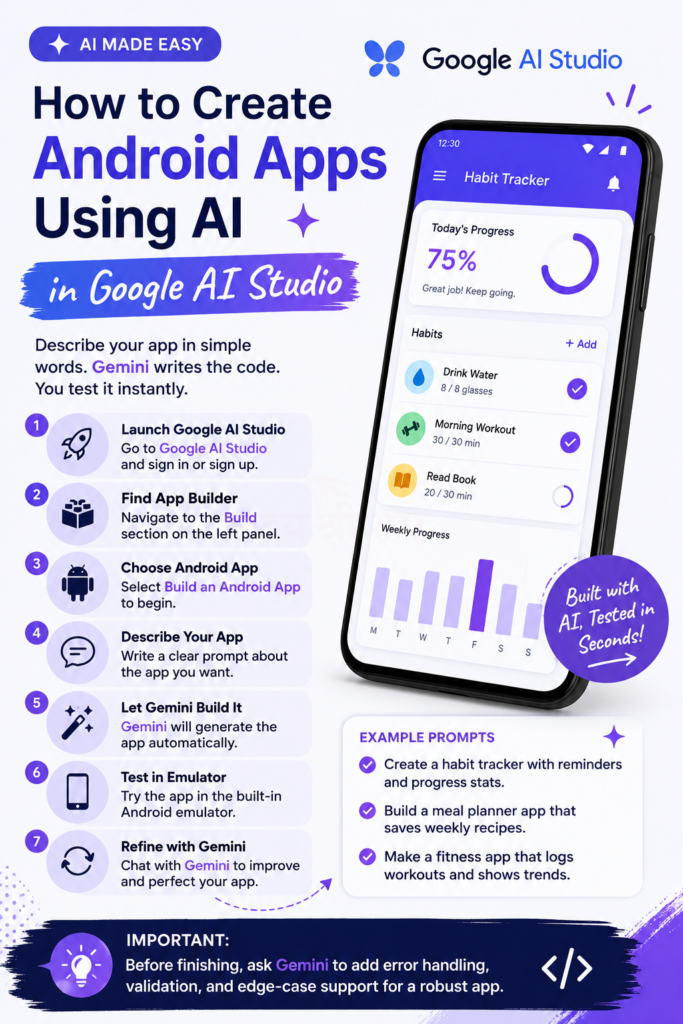
Step 1: Open Google AI Studio
Navigate to aistudio.google.com and sign in with your Google account. If you’re new to the platform, you’ll be prompted to agree to the terms of service and complete a short onboarding flow. The process takes less than two minutes.
Once inside, you’ll see a clean interface with navigation options on the left side. Take a moment to familiarize yourself with the layout before diving in.
Step 2: Access the App Builder
Look for the Build section in the left navigation panel. This is separate from the standard “Prompt” or “Chat” areas you might see first. The Build section houses specialized creation workflows, and the Android App Builder lives here.
If you don’t see it immediately, check for an expandable menu or scroll down — the interface occasionally updates as Google adds features.
Step 3: Select Android App Development
Inside the Build section, select Build an Android App. This launches the dedicated app creation workflow with a fresh prompt interface optimized specifically for generating Android applications.
You’ll notice the context is now tailored for app creation — the AI understands you want a complete application, not just a code snippet or an explanation.
Step 4: Write a Detailed App Prompt
This is the most important step. The quality of your prompt directly determines the quality of the app Gemini generates.
A weak prompt produces a vague result. A strong prompt produces something genuinely useful. Here’s the difference in practice:
Weak prompt: “Create a fitness app.”
Strong prompt: “Build a fitness tracking app that lets users log daily workouts by selecting exercise type (cardio, strength, flexibility), entering duration in minutes, and adding optional notes. Include a progress screen showing a weekly summary with a simple bar chart. Use a dark theme with a clean, minimal layout. Include a settings screen where users can set a daily workout goal.”
The more context you give — intended audience, key screens, specific features, visual style — the better the output. Think of it like giving instructions to a contractor. The clearer you are, the less rework you’ll need.
Example prompts to get you started:
- Create a habit tracker with daily streaks, reminder notifications, and a monthly completion calendar.
- Build a meal planner that lets users save weekly recipes and generate a shopping list from selected meals.
- Make a personal finance tracker that logs income and expenses by category and shows a monthly pie chart.
- Create a simple note-taking app with folders, search functionality, and a pinned-notes feature.
Step 5: Let Gemini Generate Your App
Hit submit and let Gemini work. The generation process typically takes anywhere from thirty seconds to a few minutes depending on the complexity of the request and current server load.
You’ll see the AI producing code in real time — files being created, a structure taking shape. This is a genuinely useful thing to watch if you’re trying to learn Android development. Pay attention to which files get generated and how they’re organized.
Once generation is complete, the browser-based emulator automatically loads your app.
Step 6: Test the App in the Emulator
The emulator simulates a real Android device inside your browser. Tap through your app the same way you would on a phone.
As you test, pay close attention to four things:
UI and layout — Does it look the way you imagined? Are text sizes and spacing comfortable? Does the layout adapt if you rotate the virtual device?
Navigation flow — Can you move between screens naturally? Are back buttons working correctly? Does the app close when expected?
Core functionality — Do the app’s main features work? If you built a tracker, can you add entries and see them displayed correctly?
Edge cases — What happens when you submit an empty form? What does the app show when there’s no data yet? Does anything crash?
Write down everything that needs fixing before moving to the next step. A systematic review here saves time later.
Step 7: Refine the Application Through Conversation
This is where Google AI Studio’s conversational approach becomes a genuine superpower. Continue chatting with Gemini after the initial build to improve the app.
Some useful follow-up requests:
- “Add a search bar to the main screen that filters results in real time.”
- “The bottom navigation bar isn’t showing the correct icon for the profile tab. Fix that.”
- “Increase the font size on the summary cards. They feel too small on a standard phone screen.”
- “Add an empty state message when the list has no items. It should say ‘Nothing here yet — add your first entry!'”
The key is to be specific. “Make it look better” gives Gemini almost nothing to work with. “Change the background to dark navy (#1A2340), increase card corner radius to 16dp, and use white text throughout” gives it exactly what it needs.
How to Write Prompts That Actually Work
Prompt quality is the single biggest factor in your results. A few principles that consistently produce better apps:
Describe the user, not just the feature. “A home cook who wants to plan meals for the week” is more useful context than “a meal planner app.” When Gemini understands who’s using the app, it makes smarter decisions about layout and complexity.
Specify screens explicitly. List the screens you want: home, detail, settings, history. If you don’t, Gemini will make assumptions — sometimes good, sometimes not.
Mention the visual style. Dark theme or light theme? Minimal or colorful? Material 3 design language? These details influence what gets generated.
Include constraints. “Keep the UI simple enough for elderly users” or “the app will be used one-handed, so avoid elements in the top corners” are the kind of real-world constraints that meaningfully improve the output.
Ask for what you know you’ll need. If you know you want notifications, say so upfront. If you need local data storage, mention it. Retrofitting features is slower than including them from the start.
Real-World App Ideas You Can Build Today
Need inspiration? Here are some specific, achievable app concepts that work well with AI-generated Android development:
For personal use: Daily water intake tracker, mood journal with monthly graphs, book reading log with star ratings, sleep schedule tracker.
For small businesses: Simple inventory logger for a retail shop, shift scheduling tool for a small team, customer inquiry form with a local log, job estimate calculator.
For side projects: Trivia quiz app on any niche topic, flashcard study tool, timer app for workout intervals, local event listing viewer.
For freelance clients: Basic appointment booking interface, product catalogue display app, loyalty point tracker, simple to-do tool for a specific workflow.
Pro Tips for Better Results
Start simple, then expand. Build a minimal version first and confirm it works before adding complexity. A working basic app is far more valuable than a broken complex one.
Use Google’s Material 3 guidelines as a reference. When asking for design improvements, mentioning Material 3 components (cards, chips, navigation bars, FABs) gives Gemini a shared design vocabulary to work from.
Ask for accessibility features. Request sufficient contrast ratios, large tap targets, and content descriptions for screen readers. Gemini can implement these easily if asked.
Review the generated code. Even if you’re not a developer, spending ten minutes reading through the main files teaches you how the app is structured. Tools like ChatGPT or Claude can explain any code snippets you don’t understand.
Save your prompts. As you discover what works, keep a personal library of effective prompt patterns. Your second and third projects will benefit enormously from what you learned on the first.
Common Mistakes to Avoid
Vague initial prompts. The single biggest mistake is starting with something like “make me a social app.” The output will be generic and require extensive rework. Be specific from the start.
Skipping the emulator testing phase. Don’t jump straight to refinements without thorough testing. Missing a fundamental navigation issue early means building future features on a broken foundation.
Asking for too many changes at once. Requesting fifteen changes in a single follow-up message confuses the model and increases the chance of unintended regressions. Request changes in logical groups — design changes together, functional changes together.
Ignoring error handling. A common pitfall is shipping an app that looks great until it encounters unexpected input or an empty state. Always ask Gemini to implement proper validation and error messaging before considering the app complete.
Treating the first output as final. The first generated app is a starting point, not a finished product. Budget time for at least two or three rounds of refinement.
Forgetting about performance. Once the app is functionally complete, ask Gemini to review it for performance issues — unnecessary network calls, memory leaks in lists, heavy images. These small fixes matter more than they seem.
Best Practices for Production-Ready Apps
Before you consider an app done, run through this checklist with Gemini:
Error handling — Every screen that can fail should fail gracefully. Network errors, missing data, unexpected input — all of it needs a user-facing message that’s helpful, not cryptic.
Input validation — Forms should reject empty required fields, flag invalid email formats, and cap text lengths where appropriate. Ask Gemini to add validation to every input field.
Edge-case coverage — Empty states (no items in a list), maximum data states (very long text in a card), and offline states (no internet connection) should all be handled.
Loading indicators — Any action that takes more than a moment should show a loading spinner or progress indicator. Without these, users assume the app is broken.
Accessibility — Minimum 4.5:1 color contrast for body text, tap targets of at least 48x48dp, and content descriptions on all icons and images.
Consistent navigation patterns — Use Android’s standard back-stack behavior. Avoid custom navigation logic unless there’s a strong reason for it.
Troubleshooting Common Issues
The emulator isn’t loading. Refresh the page and regenerate. Occasionally the browser-based environment needs a reset after a complex generation.
The app crashes on a specific action. Describe the crash in detail to Gemini: “The app crashes when I tap the Add button on the home screen after leaving the name field empty.” The more specific you are, the faster it gets fixed.
The design doesn’t match what you described. Try describing the design using more concrete terms — hex color codes, specific component names, pixel or dp measurements.
Generated code has an obvious bug. Paste the relevant portion of the code into your follow-up message and ask Gemini to identify and fix the issue. Giving it the code directly is faster than describing the symptom.
Features from a previous request got removed. This can happen in complex conversations. Remind Gemini of the feature that disappeared and ask it to re-implement it without affecting the other parts of the app.
Frequently Asked Questions
1. Is Google AI Studio completely free to use?
Google AI Studio offers a free tier with generous usage limits, including access to the Gemini models and the Android App Builder. For heavier usage or access to the most powerful Gemini variants, paid tiers are available. For most individual projects and learning purposes, the free tier is more than sufficient.
2. Do I need any coding knowledge to use the Android App Builder?
No. You can generate, test, and refine a functional Android app without writing a single line of code yourself. That said, a basic understanding of what you want the app to do — not how to code it — is essential. Clear thinking about your app’s purpose translates directly into better prompts.
3. Can I export the generated app code?
Yes. Google AI Studio allows you to access and download the generated code. This means you can take the output, open it in Android Studio, and continue development there if needed — ideal for developers who want to use AI for scaffolding but prefer to handle advanced customization themselves.
4. How complex can the generated apps be?
For straightforward apps — trackers, loggers, calculators, simple forms, basic CRUD (create, read, update, delete) tools — the results are impressive. For highly complex apps with real-time multiplayer features, complex authentication flows, or deeply custom UI components, the AI’s output will need more developer intervention. Think of it as generating 70–90% of the work; the edge cases may still need human refinement.
5. Does the app work only in the browser emulator, or can I install it on a real phone?
The browser-based emulator is for testing. To install the app on a real Android device, you need to export the code, open it in Android Studio, and build an APK. Alternatively, services like Firebase App Distribution let you distribute builds for testing without going through the Play Store.
6. What programming language does Gemini use to generate Android apps?
Gemini generates standard Android code, typically in Kotlin — the officially recommended language for Android development by Google. In some cases, Java may be produced. The code follows standard Android SDK patterns, making it compatible with Android Studio and other professional tools.
7. Can I use Google AI Studio for iOS app development too?
As of 2026, the dedicated App Builder workflow in Google AI Studio is focused on Android. For iOS development, you would need a different tool or approach. That said, Gemini is highly capable of generating Swift and SwiftUI code if you use the standard prompt interface — it just won’t come with the integrated iOS emulator experience.
8. What are the limitations compared to hiring a professional developer?
AI-generated apps are excellent for MVPs, prototypes, internal tools, and simpler consumer apps. They have real limitations when it comes to deeply custom animations, complex real-time data architectures, third-party SDK integrations, security-critical features, and Play Store compliance edge cases. A professional developer will always have an advantage in these areas. But for getting from idea to working prototype quickly and cheaply, Google AI Studio is genuinely hard to beat.
Conclusion
Google AI Studio’s Android App Builder is one of the most practical examples of AI making a genuinely difficult skill accessible to everyone. What used to require months of learning and thousands of dollars in development costs can now be started in a single afternoon, with nothing more than a Google account and a clear idea.
The key to getting real value from the tool comes down to three things: writing specific, detailed prompts; testing rigorously in the emulator; and iterating patiently until the app actually meets your standard.
This isn’t magic — the AI makes mistakes, the first output rarely hits 100%, and genuinely complex apps will still need human developer involvement at some point. But as a way to go from idea to interactive prototype faster than ever before, it’s a remarkable tool.
Ready to build? Open Google AI Studio, describe the app you’ve always wanted to create, and see what comes back. You might be surprised how much ground you can cover in your first session.

0 Comments